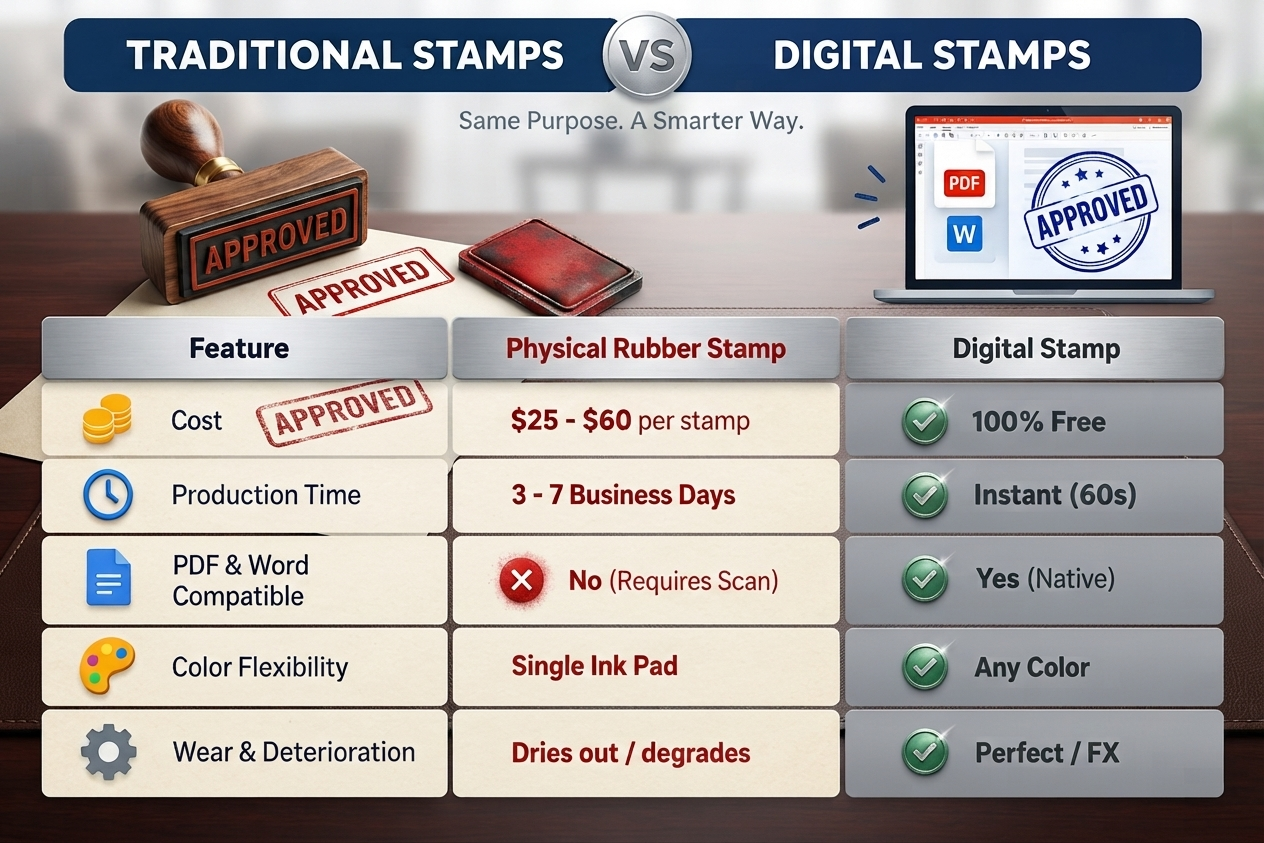
In today’s digital-first business environment, physical rubber stamps, ink pads, and courier deliveries are rapidly being replaced by digital stamps and official electronic seals. Whether you are an accountant marking invoices as PAID, a business owner issuing corporate agreements, a notary public preparing digital acknowledgments, or a freelancer approving deliverables, having a clean, professional digital stamp is essential.
In this comprehensive guide, you will learn how to create a custom digital stamp online in under 60 seconds, how to calibrate circular typography, which export formats to use, and how to stamp your PDF and Word documents directly in your browser with complete privacy.
What is a Digital Stamp?
A digital stamp (also known as an electronic seal or e-stamp) is a high-resolution graphical representation of an official marking, company emblem, notary seal, or status badge. Unlike a static image captured with a smartphone camera, a true digital stamp is:
- Lossless and Sharp: Designed with precision vector paths and exported at high resolutions (300 to 1200 DPI).
- Transparent: Built without an opaque white background, allowing the stamp to sit naturally over document text and signatures.
- Calibrated to Real-World Dimensions: Configured in standard metric (e.g., 38mm, 40mm, 45mm) or imperial (1.5”, 1.75”, 2.0”) physical dimensions.
- Customizable: Equipped with realistic ink bleed, distress textures, and custom colors (Notary Red, Bank Blue, Carbon Black, Emerald Green).
4-Step Walkthrough: Creating a Custom Stamp Online
Creating a digital stamp with Online Stamp Generator requires zero design experience and no software installation. Follow these 4 straightforward steps:
Step 1: Select Your Stamp Geometry & Sizing
The shape of your stamp defines its formal purpose and authority:
- Round / Circular (38mm – 50mm): The international standard for corporate seals, notary public marks, government agencies, and bank verification stamps.
- Rectangular (50x20mm – 70x30mm): Best for status marks (
APPROVED,PAID,CONFIDENTIAL,RECEIVED), company address blocks, and signature endorsements. - Oval / Elliptical: Frequently used for academic certification, customs clearance, and European corporate seals.
- Triangular: Common in engineering certifications, inspection marks, and technical quality control.
Pro Tip: If you are creating a legal or notary seal, consult our Stamp Sizes Guide to match the mandatory millimeter diameter required by your jurisdiction.
Step 2: Configure Concentric Rings & Typography
The hallmark of a high-quality official seal is concentric symmetry:
- Outer & Inner Rings: Set an outer solid border (2.5px – 4px) combined with an inner decorative hairline or dotted ring. This frames your text and gives the stamp structural weight.
- Top Arc Text: Enter your organization name, jurisdiction, or primary title (e.g.,
"ACME GLOBAL ENTERPRISES LLC"). - Bottom Arc Text: Enter your registration number, state, or motto (e.g.,
"STATE OF DELAWARE • 2026"). Our engine automatically curves this text along the lower arc right-side up. - Center Emblem or Text: Place a central element such as an official star icon, corporate acronym, incorporation date (
"EST. 2018"), or status indicator.
Step 3: Choose Ink Color & Realistic Distress Effects
Digital documents often look artificial when stamps are rendered as sterile, flat geometric shapes. To create an authentic rubber stamp aesthetic:
- Pick an Authentic Ink Color:
- Notary / Legal Red (
#C8102E): Universally recognized for urgent approvals, legal seals, and official rejections. - Corporate / Bank Blue (
#003399): The standard for financial endorsements and corporate authorizations because it stands out against black document text. - Carbon Black (
#171717): Classic, neutral, and minimalist. - Forest Green (
#006837): Ideal for quality control, environmental verification, and customs clearance.
- Notary / Legal Red (
- Apply Ink Distress Filters: Use the aging slider to simulate the organic pressure variation, micro-voids, and ink bleed of a real rubber stamp on paper.
Step 4: Export in High-Resolution Formats
Click the Download menu to save your stamp:
- Transparent PNG (1200 DPI): The recommended format for standard office workflows. Transparent background ensures no ugly white rectangular box overlays your documents.
- Vector SVG: Lossless mathematical vector format. Perfect for web developers, professional graphic designers, or sending to a physical stamp manufacturer.
- Print PDF (1:1 Scale): Exactly calibrated to physical millimetric scale for proofing and printing.
How to Apply Your Digital Stamp to Documents
Once you have generated your stamp, placing it onto your contracts, invoices, and certificates is simple:
Method A: Use Our In-Browser PDF & Word Stamper (Recommended)
You can stamp documents without installing Adobe Acrobat or uploading sensitive files to cloud servers:
- Navigate to our free PDF & Word Stamper Tool.
- Drag and drop your
.pdfor.docxfile into the secure viewport. - Select your newly generated stamp from the stamp library or upload your custom PNG.
- Position, rotate, and scale the stamp directly onto any page of the document.
- Click Download Stamped Document for an instant, flattened export.
Method B: In Microsoft Word or Google Docs
- Open your document and place your cursor where you want the seal to appear.
- Click Insert > Picture / Image > From this device.
- Select your transparent PNG stamp.
- Set image wrapping to “In Front of Text” or “Behind Text” so you can freely position it over your signature line.
Method C: In Adobe Acrobat Reader
- Open your PDF document in Adobe Acrobat.
- Go to Tools > Fill & Sign or Tools > Stamp.
- Click Custom Stamps > Create and import your transparent PNG file.
- Place the stamp onto the signature block.
Legal Considerations: Are Digital Stamps Legally Binding?
One of the most frequent questions we receive is whether a digital stamp carries legal weight.
The United States (ESIGN Act & UETA)
Under the Electronic Signatures in Global and National Commerce Act (ESIGN) and the Uniform Electronic Transactions Act (UETA), an electronic seal or stamp attached to a contract is legally enforceable provided:
- The signer intended to sign or endorse the document.
- All parties consented to do business electronically.
- The document is preserved in a verifiable, accessible format.
The European Union (eIDAS Regulation)
Under the eIDAS Regulation (EU No 910/2014), electronic seals are classified into Simple, Advanced, and Qualified Electronic Seals. A digital stamp image functions as an electronic seal and cannot be denied legal validity solely on the grounds that it is in electronic form.
Corporate & Accounting Practice
For internal governance, invoice tracking (PAID, RECEIVED, CONFIDENTIAL), purchase orders, and inter-company contracts, digital stamps are the gold standard for streamlining operational approval workflows.
5 Common Mistakes to Avoid
- Using JPEG with a White Background: JPEG files do not support transparency. Always export in PNG or SVG to avoid an opaque white box that covers document text.
- Low DPI Export: Low-resolution images (72 DPI) appear pixelated and blurry when printed. Always use 300 DPI to 1200 DPI exports.
- Upside-Down Bottom Text: Ensure your circular text generator supports counter-clockwise lower arc calculations so text is readable from left to right.
- Illegible Fonts: Avoid overly complex gothic fonts for small perimeter text. Use clean sans-serif or slab-serif typefaces like Montserrat, Geist, or Roboto Slab.
- Over-Distressing Legal Seals: While vintage distress looks great for branding, legal notary stamps should maintain sharp, clear lettering to ensure illegibility is never contested.
Start Creating Your Digital Stamp Today
Ready to design your own official seal, notary mark, or custom company stamp?
👉 Launch the Free Online Stamp Studio — 100% Free Forever, Zero Watermarks, Instant Download.
Or browse our 50+ Pre-Configured Stamp Templates to start from an official design!